
Clicking a Control No. link on the JOB DETAILS page displays this page containing detailed grading or identification service results. The information displayed depends on the current status of the item and the type of service requested.
Results are displayed once services have been completed.
Scroll down for more information.
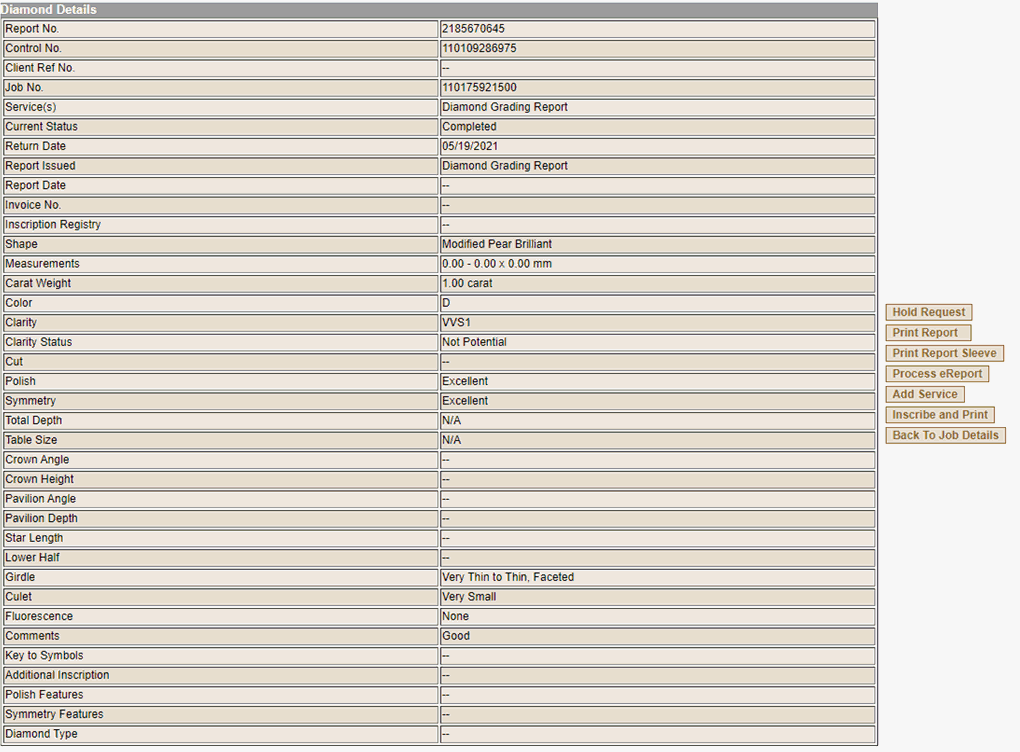
From this page, you may perform any of the following functions. Service and Print requests can only be made on diamond services. Shipping and Invoice details are available for all service types.
If you have a managed account, grading reports or report sleeves are not printed until you ask GIA to do so, giving you the flexibility to request additional services while items are still at GIA. Otherwise, reports are printed immediately after service completion and items are made ready for return.
Printing may be requested on items with a "Completed" or "Hold" status.
To request that GIA print the report or sleeve:
Click the Print Report or Print Report Sleeve button and a summary page is displayed.
Confirm all print requests for accuracy.
Click Confirm Request to submit print requests to GIA.
Click Cancel Request to cancel your request.
Reports or Report Sleeves are not printed until you click the Confirm Request button.
REQUEST THAT GIA PROCESS A DIAMOND eREPORT:REQUEST THAT GIA PROCESS A DIAMOND eREPORT:
For Diamond eReport services, the client views their digital report on Report Check and a hard copy report is not provided to the client. If you have a managed account, Diamond eReports are not processed and returned until you ask GIA to do so, giving you the flexibility to request additional services while items are still at GIA. Otherwise, items are processed immediately after service completion and items are made ready for return.
Processing of Diamond eReports may be requested on items with a "Completed" or "Hold" status.
To request that GIA process the item:
Click the Process eReport button and a summary page is displayed.
Confirm all requests for accuracy.
Click Confirm Request to submit your request to GIA.
Click Cancel Request to cancel your request and return to the Job Details screen.
Once the request is submitted you can Print or Email a copy for your reference.
Items are not processed until you click the Confirm Request button.
PLACE AN ITEM ON HOLD:PLACE AN ITEM ON HOLD:
If you have a managed account, then you have the ability to put items on hold while you decide whether to request additional services before reports are printed and items are returned. This is available on items with a "Completed" status currently submitted for diamond services.
To put items on Hold:
Click the HOLD button and a summary page is displayed.
Confirm all hold requests for accuracy.
Click Confirm Request to submit hold requests to GIA.
Click Cancel Request to cancel your request and return to the Job Detail screen.
Items are not put on hold until you click the Confirm Request button
REQUEST ADDITIONAL SERVICES:REQUEST ADDITIONAL SERVICES:
If you have a managed account, you have the ability to request additional diamond services while items are still at GIA. This is available on items with a "Completed" or "Hold" status.
To add a service:
Click the Add Service button and a page will open where you can select services.
Select the service on the left and click the > button to move it to the right side of the shuttle. The services listed on the right are the ones that will be added. [see service descriptions]
Use the Control key to select multiple services at one time.
To remove a service, select it and click the < button.
For Recheck Other or Final Observation Other, specify the result you would like rechecked in the comment field pull down. For Recheck Other2, add the Reference Report Number.
For inscription services other than GIA Report Number, please specify the text you would like inscribed. [see How]
Click OK.
The Job Details screen is displayed and the Control Number for which there are added services appears in red.
Add services to additional items if desired.
Once all services are added, click Submit Service Request and a summary page is displayed.
Confirm all service requests for accuracy.
To remove a request from your order, click the Remove checkbox for that item.
Click Confirm Request to submit requested services to GIA.
Click Cancel Request to cancel your request and return to the Job Details screen.
Services are not added until you click the Confirm Request button.
VIEW SHIPPING DETAILS:VIEW SHIPPING DETAILS:
Once an item was returned to you via courier, click the View Shipping Details button to view the invoice number, ship date, shipping method, shipping location, Airbill / HAWB No., and a link to the courier's website, if available.
Once an invoice has been issued for the item, click the View Invoice button to view the invoice number, services and fees.