
This page displays all items based on the search criteria you entered on the JOB SUMMARY page.
Scroll down for more information.
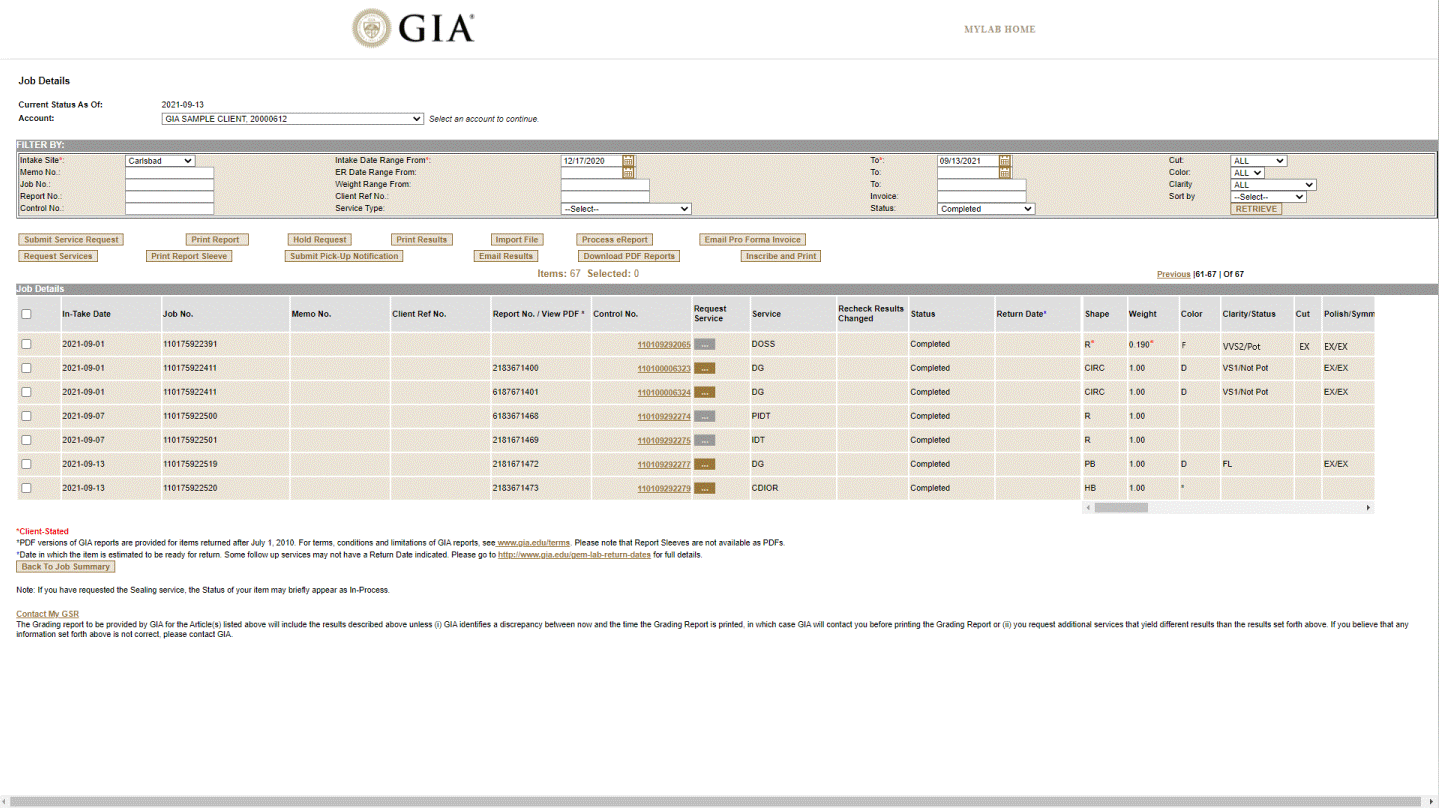
From this page, you may perform any of the following functions:
SELECT OR CHANGE ACCOUNT:SELECT OR CHANGE ACCOUNT:

The Account field displays the GIA accounts you have access to view.
FILTER RESULTS OR CHANGE SEARCH CRITERIA:FILTER RESULTS OR CHANGE SEARCH CRITERIA:

Use the available "Filter By" selections to view items in other Sites and other Jobs, or to narrow your current search.
Once you enter your Filter By options, click the Retrieve button.
VIEW, PRINT OR EMAIL GRADING RESULTS:VIEW, PRINT OR EMAIL GRADING RESULTS:
The displayed information varies depending on the status of the item and the services requested.
TO PRINT RESULTS:TO PRINT RESULTS:
TO EMAIL RESULTS:TO EMAIL RESULTS:
If you have a managed account, grading reports or report sleeves are not printed until you ask GIA to do so, giving you the flexibility to request additional services while items are still at GIA. Otherwise, reports are printed immediately after service completion and items are made ready for return.
Printing may be requested on items with a "Completed" or "Hold" status.
To request that GIA print the report or sleeve:
Select the items to be printed by clicking the checkbox in the first column.
Click the checkbox in the header row to select all.
Click the Print Report or Print Report Sleeve button and a summary page is displayed.
Confirm all print requests for accuracy.
Click Confirm Request to submit your print request to GIA.
Click Cancel Request to cancel your request and return to the Job Details screen.
Once the request is submitted you can Print or Email a copy for your reference.
Reports or Report Sleeves are not printed until you click the Confirm Request button.
REQUEST THAT GIA INSCRIBE AND PRINT THE REPORT:REQUEST THAT GIA INSCRIBE AND PRINT THE REPORT:
If you have a managed account, grading reports are not printed until you request GIA to do so, giving you the flexibility to request additional services while items are still at GIA. Otherwise, reports are printed immediately after service completion and items are made ready for return.
Printing may be requested on items with a " Completed " or " Hold " status.
To request that an item be inscribed and the report printed immediately afterwards:
Select the items to be inscribed and printed by clicking on the checkbox in the first column.
Click on the checkbox in the header row to select all.
Click on the Inscribe and Print button and a summary page is displayed.
Select the inscription service(s) from the shuttle. Click OK.
Select or enter the inscription text if IM, IMA, IMB or IMC service were selected.
Confirm all requests for accuracy.
Click on CONFIRM REQUEST to submit your request to GIA.
Click on CANCEL REQUEST to cancel your request and return to the Job Details screen.
Once the request is submitted you can Print or Email a copy for your reference.
Items are not processed until you click the Confirm Request button.
REQUEST THAT GIA PROCESS A DIAMOND eREPORT:REQUEST THAT GIA PROCESS A DIAMOND eREPORT:
For Diamond eReport services, the client views their digital report on Report Check and a hard copy report is not provided to the client. If you have a managed account, Diamond eReports are not processed and returned until you ask GIA to do so, giving you the flexibility to request additional services while items are still at GIA. Otherwise, items are processed immediately after service completion and items are made ready for return.
Processing of Diamond eReports may be requested on items with a "Completed" or "Hold" status.
To request that GIA process the item:
Select the items to be printed by clicking the checkbox in the first column.
Click the checkbox in the header row to select all.
Click the Process eReport button and a summary page is displayed.
Confirm all requests for accuracy.
Click Confirm Request to submit your request to GIA.
Click Cancel Request to cancel your request and return to the Job Details screen.
Once the request is submitted you can Print or Email a copy for your reference.
Items are not processed until you click the Confirm Request button.
PLACE AN ITEM ON HOLD:PLACE AN ITEM ON HOLD:
If you have a managed account, then you have the ability to put items on hold while you decide whether to request additional services before reports are printed and items are returned. This is available on items with a "Completed" status currently submitted for diamond services.
To put items on Hold:
Select the items you want to put on hold by clicking the checkbox in the first column.
Click the checkbox in the header row to select all.
Click the Hold button and a summary page is displayed.
Confirm all hold requests for accuracy.
Click Confirm Request to submit your hold request to GIA.
Click Cancel Request to cancel your request and return to the Job Details screen.
Once the request is submitted you can Print or Email a copy for your reference.
Items are not put on hold until you click the Confirm Request button
REQUEST ADDITIONAL SERVICES:REQUEST ADDITIONAL SERVICES:
If you have a managed account, then you have the ability to request additional diamond services while items are still at GIA. This is available on items with a "Completed" or "Hold" status.
To add a service:
Click the  button next to the item's Control No. column. If the
  button is gold, a page will open where you can select services. If the
  button is gray, it is inactive.
Select the service on the left and click the > button to move it to the right side of the shuttle. The services listed on the right are the ones that will be added. [See Service Descriptions]
Use the Control key to select multiple services at one time.
Download PDF
To remove a service, select it and click the < button.
For Recheck Other or Final Observation Other, specify the result you would like rechecked in the Comment field pull-down. For Recheck Other2, add the Reference Report Number.
For inscription services other than the GIA Report Number, please specify the text you would like inscribed.
Click OK.
The Job Details screen is displayed and the Control Number for which there are added services appears in red.
Repeat steps 1-3 for each item to which you wish to add services.
Once all services are added, click Submit Service Request and a summary page is displayed.
Confirm all service requests for accuracy.
To remove a request from your order, click the Remove checkbox for that item.
Click Confirm Request to submit requested services to GIA.
Click Cancel Request to cancel your request and return to the Job Details screen.
Click Edit to open the Add Service table where you can change any service requests.
Once the request is submitted you can Print or Email a copy for your reference.
Services are not added until you click the Confirm Request button.
To request the same service for multiple items:
Select the items by clicking the checkbox in the first column. A page will open where you can select services.
Select the service on the left and click the > button to move it to the right side of the shuttle. The services listed on the right are the ones that will be added.
For Recheck Other or Final Observation Other, specify the result you would like rechecked in the Comment field pull-down. For Recheck Other2, add the Reference Report Number.
For inscription services other than the GIA Report Number, please specify the text you would like inscribed.
Click OK. The Request Summary page is displayed.
Click Confirm Request to submit requested services to GIA.
Click Cancel Request to cancel your request and return to the Job Details screen.
Click Edit to open the Add Service table where you can change any service requests.
Once the request is submitted you can Print or Email a copy for your reference.
Services are not added until you click the Confirm Request button.
A specially formatted electronic file may be used to import service and print requests rather than entering one item at a time. You may use an import file as follows:
Click the Upload File button and a Select Import File window appears.
Browse to the location of the file on the network, select the file and click Open.
Click Import File to download the file. The Request Summary page is displayed.
Confirm all service requests for accuracy.
To remove a request from your order, click the Remove checkbox for that item.
Click Confirm Request to submit requested services to GIA.
Click Cancel Request to cancel your request and return to the Job Details screen.
Once the request is submitted you can Print or Email a copy for your reference.
For the import function to work it is important that the file is formatted correctly. See required format: Import File Procedures.
EMAIL PRO FORMA INVOICE:EMAIL PRO FORMA INVOICE:
Once items have a "Ready for Return" status, you can Email a Pro Forma Invoice to yourself. The Pro Forma Invoice will give you the amount to prepay before we return your items in person, or you request a shipment.
To use Email Pro Forma Invoice:
On Job Details, filter by Intake Site, "Status: Ready for Return," click "Retrieve."
Select the items you want returned.
Click the checkbox in the header row to select all.
Click Email Pro Forma Invoice
A pop up will appear to send to recipients, it will auto fill all Notification emails that are associated with your account, click Send.
Important: Forward a copy of your Pro Forma Invoice attachment with your proof of payment to your local laboratory location.
Please note: This is not a final invoice. Shipping fees are not shown and may apply.
NOTIFY GIA THAT YOU WILL BE PICKING UP YOUR ITEMS:NOTIFY GIA THAT YOU WILL BE PICKING UP YOUR ITEMS:
Once items have a "Ready for Return" status, you can notify GIA that you are on your way to pick up these items so that they are ready when you arrive. This is available on items that you submitted in person, or via courier if you specified that you will be picking up the items in person.
To submit a pick-up notification:
Select the items you want to pick up by clicking the checkbox in the first column.
Click the checkbox in the header row to select all.
Click the Submit Pickup Notification button.
This sends the notification to GIA and opens a PDF listing the items for you to print for your records.
VIEW AND DOWNLOAD PDF VERSIONS OF GIA REPORTS:VIEW AND DOWNLOAD PDF VERSIONS OF GIA REPORTS:
Once items have a “Returned” status, you can request PDF versions of your GIA grading or identification reports to print or download to your computer. Up to 20 PDF reports can be downloaded to a zip file.
To view a PDF report:
In the Report No./View PDF column, click the Report Number link for the PDF you would like to view. The File Download screen will be displayed.
Click Open to view the PDF.
Click Save to save the PDF to your computer.
Click Cancel to cancel your request and go back to the Job Details screen.
To download multiple PDF reports:
Select the items by clicking the checkbox in the left column.
Click Download PDF Reports. The File Download screen will be displayed.
Click Open to open and view the PDFs in the zip file.
Click Save to open the browser; select a folder; click Save to save the zip file to your computer.
CONTACT YOUR GSR:CONTACT YOUR GSR:
This link (at the bottom of the page) allows you to send an email directly to your GIA Gemological Service Representative (GSR) with any question or concern you may have.
To send an email:
Click the Contact My GSR link to open the email window.
Enter the subject and message.
Click the Send Mail button.