
This page allows you to create a memo of items to be submitted to the GIA Laboratory either in person or via courier. This service allows you to assign GIA Control Numbers and a GIA Job Number and enter your service requests into our system before the items arrive at the Laboratory. If you are submitting in person, this will greatly reduce the time it takes to submit your items at the intake window. If you are submitting via courier, the intake process will also be reduced allowing us to move the items into the grading or identification process more quickly.
Order Barcode Labels from GIA Laboratory:
Valid GIA Control Number barcode labels are necessary to use Submit Job Order.
TO ORDER GIA BARCODE LABELS:TO ORDER GIA BARCODE LABELS:
If your selected primary GIA laboratory location is Mumbai or Surat:
Log into the client portal
In the GIA Client Portal section, go to Stone Management
Click Request RFID Tags or Barcode Labels
Fill out the ( * ) required fields on the form
Click Save
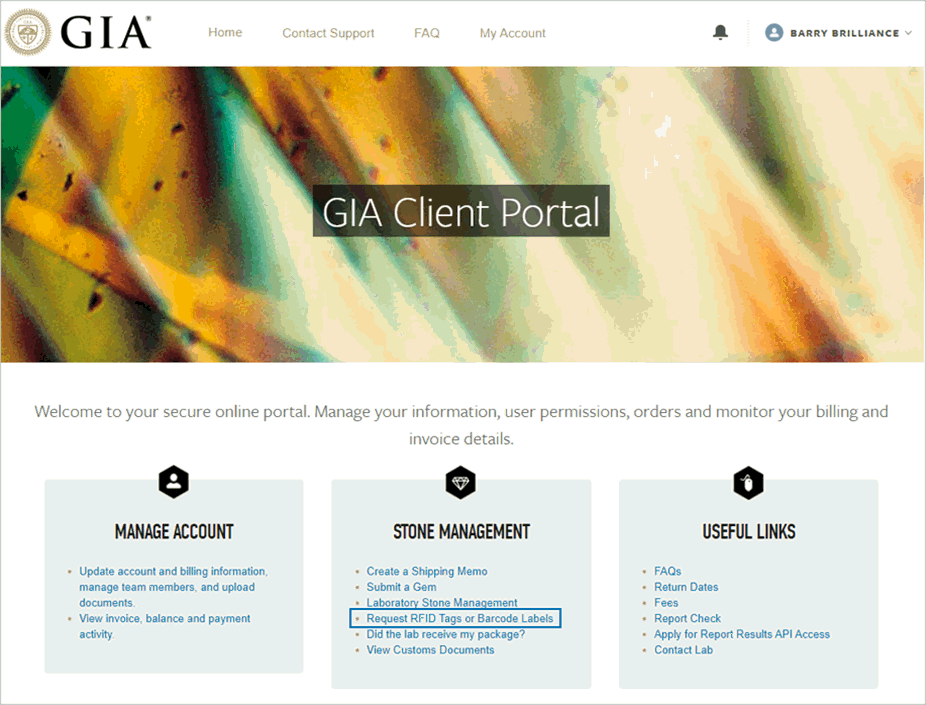
GIA India will reply to your barcode label request as soon as possible.
If your selected primary GIA laboratory is any other location:
Log into the client portal
On the GIA Client Portal home page, click Contact Lab or Contact us
visit www.gia.edu Contact Us

GIA laboratory will contact you as soon as possible.
Submit a Job Order in My Laboratory:

The Account field displays the GIA accounts to which you have access to submit jobs.
If you have access to more than one GIA account, click the pull-down to select an account and continue.

Select the Laboratory Location where you will be submitting the job.
Estimated Fees will be based on the currency of the selected location.
Be sure that each item is placed in an individual parcel paper, or another suitable container.
Place one GIA Control Number barcode label on the back and center of each parcel paper.
Parcel papers must include shape and weight. You may also include your internal identification or lot number.
Parcel papers MUST NOT include company name, initials, logos, phone, fax, email, website, or any other information which identifies you as the client or refers to grading information.

For your reference you may enter your Memo Number. In addition to the GIA Job Number, you can use this number to identify your Job. This field is not required.

For each item in the Job, you will need to enter all item information. Information can be entered one item at a time, or by using an Import File.
ONE ITEM AT A TIME:ONE ITEM AT A TIME:
Enter item information ( * required fields):
GIA Control Number *: unique 12-digit Control Number barcode label provided by GIA
Client Ref No.: your internal reference number
Previous GIA Report No.: You must enter the previous GIA Report Number if an item is being resubmitted for a secondary service (Re-Exam, Update, Recheck, Final Observation, Verification).
Rechecks and Final Observations require that you return the original hard copy report.
Stated Shape *: Select the general shape of the item.
Stated Ct Weight *: Enter the weight of the item in carats.
Stated Value: Enter the value of the item.
Stated HPHT *: Enter "Yes" if you believe the item to be HPHT processed.
Enter Requested Services:
Click the +/- button next to the Request Services field. A page will open where you can select services.
A specially formatted electronic file may be used to import item information rather than entering one item at a time. You may use an import file as follows:
For the import function to work it is important that the file is formatted correctly.
Browse to the location of the file on the network, select the file and click Open.
Information is imported into the Items section.
For the import function to work it is important that the file is formatted correctly.
SEE REQUIRED FORMAT:SEE REQUIRED FORMAT:
SORTING SERVICES:SORTING SERVICES:
Enter item information (* required fields):
GIA Control Number*: unique 12-digit Control Number barcode label provided by GIA
Client Ref No.: your internal reference number
Previous GIA Report No.: You must enter the previous GIA Report Number if an item is being resubmitted for secondary services (Re-Exam, Update, Recheck, Final Observation, Verification)
Rechecks and Final Observations require that you return the original hard copy report.
Stated Shape*: Select the general shape of the item.
Stated Ct Weight*: Enter the weight of the item in carats.
Stated Value: Enter the value of the item.
Stated HPHT*: Enter "Yes" if you believe the item to be HPHT processed.
Enter Requested Services:
Click the +/- button next to the Request Services field. A page will open where you can select services.
Select the service on the left and click on the > button to move it to the right side of the shuttle. The services listed on the right are the ones that will be added. [See Service Descriptions]
Use the Control key to select multiple services at one time.
To remove a service, select it and click the < button.
Click OK.
The Submit Job Order screen will open and the services will be displayed in the Requested Services field.
If the service requested is a Sorting-Diamond Grading or Sorting-Dossier, at least one Sorting parameter is required.

After the service is requested, the Sorting parameter pull-down will be displayed.
Select at least one Sorting parameter from the Color, Clarity, Polish or Symmetry pull-downs.
Click the Add button.
The information for the Control Number will insert the item into the table below where the Estimated Fee has been added for that item.
To delete an item, click the Delete link which will remove it from the screen. The GIA Control Number barcode can be used again.
To modify an item, click the Modify link which will move that item back up to the Item Information table where it can be edited.
Repeat steps 1-3 for each item in the Job.
Total Items and Total Estimated Fees will calculate the number of items added and the total amount of the fees for the services requested.
The Default checkbox can be used if you are requesting the same service(s) for more than one item.
Enter the information for the first Control Number and click Add.
Click the Default checkbox.
The requested services will automatically be added for the remainder of the items added until the default button is unchecked.
CONFIRM AND SUBMIT THE JOB ORDER:CONFIRM AND SUBMIT THE JOB ORDER:
Once all of the items for the job have been entered, click the Submit Order button.
The Confirm Order screen will be displayed.
To confirm the Job Order, click the Confirm button. A GIA Job Number will be generated.
Click Print to print the Job Order.
To edit or cancel the Job, click Cancel. The Submit Job Order screen will open where you can edit or cancel the Job.
When submitting items to the Laboratory, include the printout of the Job Order (either in person or in your shipment).
TO VIEW OR MODIFY A JOB NUMBER:TO VIEW OR MODIFY A JOB NUMBER:
As soon as a Job Order has been created and saved, it will be displayed on the View or Modify Job Order screen until the Job is received by GIA.
After all items have been added you can export the data into a .CSV file to be used with your own system. Click Export File to save the file.